
Optimizing your settings in Call of Duty: Black Ops 6, whether using a controller or mouse, can yield significant enhancements in your gameplay experience. Below are detailed recommendations for each input device, ensuring you can find the optimal setup that complements your competitive play style.
Controller Settings
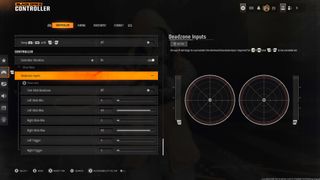
Fine-tuning your controller settings is essential for achieving effective movement and precise aiming. Here are tailored settings for competitive play:
Input Settings:
– Button Layout: Tactical. This layout allows you to crouch and slide more quickly by swapping crouch and melee. You won’t need to lift your thumb off the aim stick, which is crucial during intense firefights.
– Stick Layout: Default. This keeps the traditional stick configuration, making it user-friendly and intuitive.
– Horizontal Stick Sensitivity: 6 or 1.90. This range strikes a good balance between speed and accuracy. Adjust this based on personal preference; the new scale allows for precision tuning (0.10-4.00).
– Vertical Stick Sensitivity: 6 or 1.90. Maintain consistency between your vertical and horizontal sensitivity for cohesive movement.
– Simplified Controls: Off. This setting offers full customization options, providing better adaptability and control.
– Swap L1/R1 with L2/R2: On (optional). This can enhance your response times, particularly for aiming and shooting since it utilizes the closer L1/R1 buttons.
– Trigger Effects and Controller Vibration: Off. Disabling vibration and effects reduces distractions, enabling smoother and more focused aiming.
Aiming and Combat Settings:
– Target Aim Assist: On. Aim assist is vital for tracking fast-moving targets efficiently.
– ADS Sensitivity Multiplier: 1.00. This keeps the aim-down-sight (ADS) sensitivity in line with your regular sensitivity for a balanced feel.
– Aim Down Sight Behavior: Hold. This is the most intuitive method for aiming, ensuring quick targeting.
– Dynamic Aim Response Curve: Dynamic. It assists in achieving smooth aim transitions, making adjustments feel natural.
– ADS Sensitivity Transition Timing: Instant. This setting allows for faster target acquisition, crucial during fast-paced combat.
Mouse Settings
If you prefer using a mouse on PC, the following settings can help maximize your performance:
General Settings:
– Sensitivity: Focus on personal preference; however, aim for lower settings compared to controllers to emphasize precision over raw speed.
– Acceleration: Set to Off. This prevents any undesired speed increases when moving the mouse.
– Raw Input: On. Disabling mouse smoothing enhances movement accuracy and responsiveness.
DPI and Polling Rate:
– DPI (Dots Per Inch): Generally, a range between 800-1200 DPI suits most players. This range offers a good balance for fine control while still allowing for quick movements.
– Polling Rate: 1000 Hz. A higher polling rate ensures that the computer receives frequent updates from the mouse, enhancing tracking and responsiveness.
Graphics and Performance Settings (for Mouse Users)
While these settings pertain to performance rather than mouse input, optimizing them can boost overall gameplay experience:
– Display Mode: Fullscreen Borderless.
– Aspect Ratio: Automatic.
– V-Sync: Off to remove input lag.
– Graphics Preset: Use a Balanced or Custom setting to maintain performance without compromising too much on visuals.
Additional Tips for Competitive Play:
– Field of View (FOV): Increasing your FOV allows for greater awareness of your surroundings, though it may slightly impact performance.
– Crosshair Size: Personalize the crosshair size to enhance aiming precision.
– Double-Tap Delay: Set to Zero for immediate responsiveness.
– Mini-map Shape: Opt for a Square shape for improved visibility during gameplay.
Final Thoughts
Bear in mind that these settings serve as a guideline, and you should always tailor them to fit your unique play style and comfort level. Take the time to experiment within the game’s training modes; this will ensure you refine these settings further to suit your preferences, ultimately enhancing your performance in competitive matches. Happy gaming!




Leave a Reply