
To ensure you achieve optimal performance in Marvel Rivals for competitive play, a strategic approach utilizing both system settings and in-game adjustments is crucial. Below is a comprehensive guide that outlines the key recommendations to enhance your gaming experience:
System Settings Optimization
1. Graphics Control Panel:
– Enable Resizable BAR (ReBAR): This feature allows your CPU to access the GPU memory more efficiently, leading to enhanced performance.
– Activate Hardware-accelerated GPU Scheduling: This allows the GPU to manage its own scheduling of graphics tasks, potentially reducing latency and improving frame rates.
– Enable Game Mode: This prioritizes resources for gaming applications, ensuring better performance while playing.
2. Monitor Settings for PCs:
– Target Display: Ensure your primary monitor is selected for the best gaming experience.
– Display Mode: Set to Fullscreen to maximize performance and minimize lag.
– Aspect Ratio: Set to 16:9 or according to your specific monitor’s aspect ratio for optimal display.
– Resolution: Match the game resolution to your monitor’s native resolution for clarity and performance.
In-Game Settings Optimization
1. Graphics Settings:
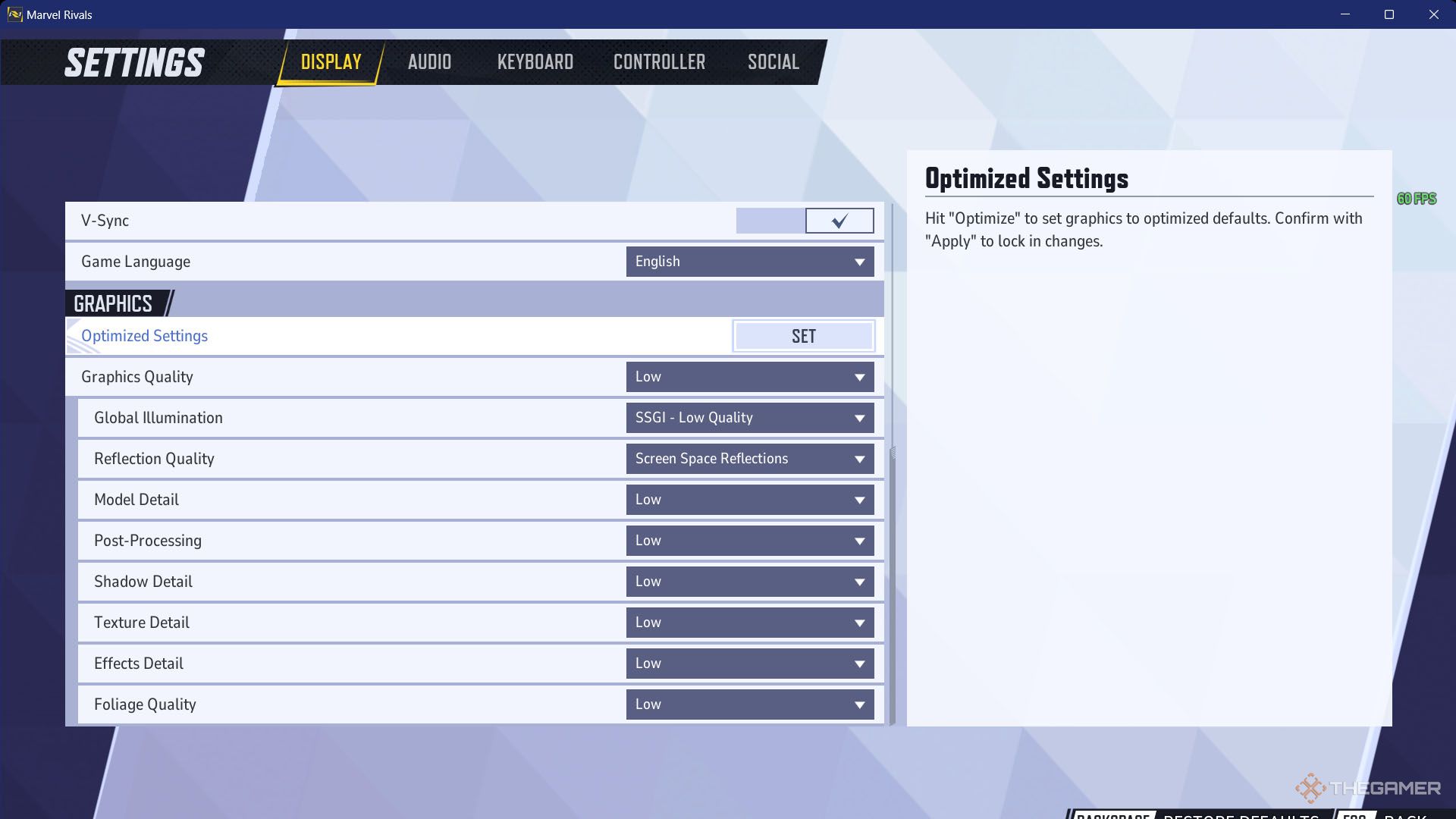
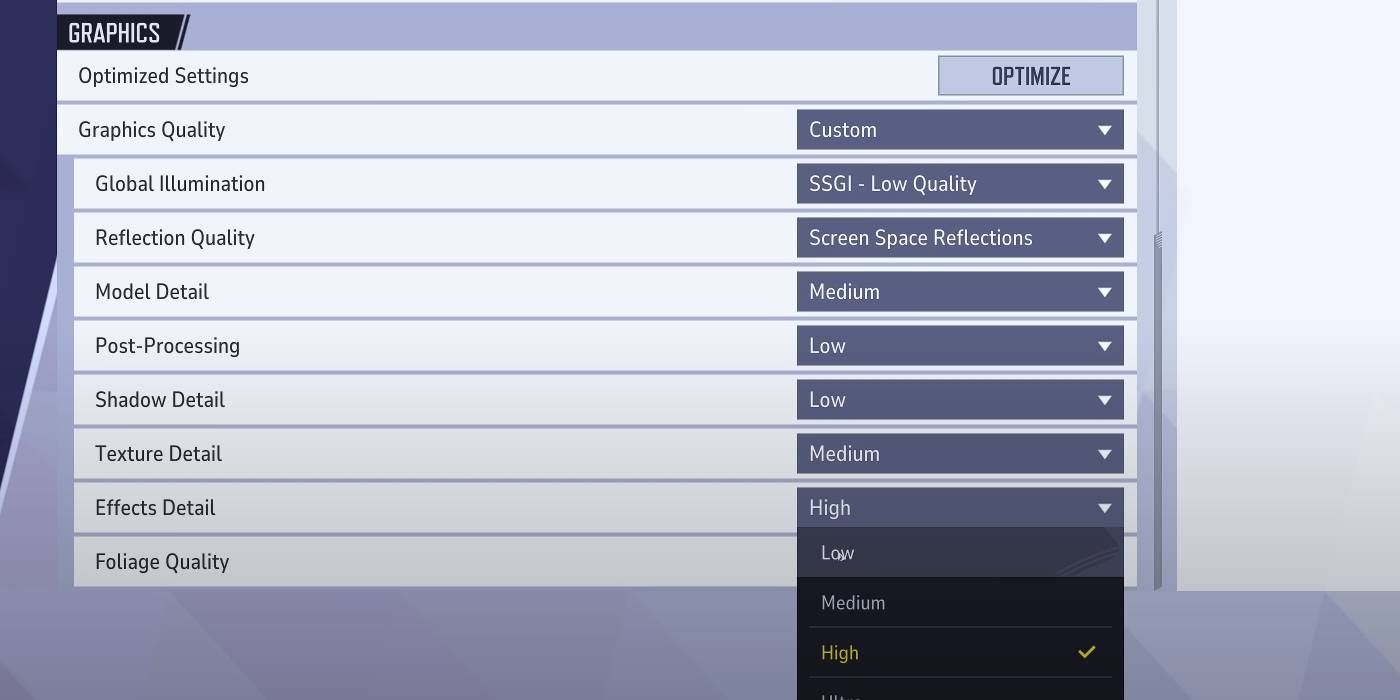
– Graphics Quality: Set this to Custom for tailored performance.
– Global Illumination: Use SSGI (Low Quality) to enhance performance with minimal impact on visuals.
– Reflection Quality: Opt for Screen Space Reflections to strike a balance between aesthetics and performance.
– Model Detail: Set to Low to boost FPS significantly.
– Post-Processing: Keep this on Low to maintain smooth gameplay without unnecessary visual processing.
– Shadow Detail: Choose Low or Medium; this helps in maintaining frame rates while still providing sufficient visual quality.
– Texture Detail: Opt for Low; if your GPU is more powerful, you may adjust this to High, watching for any drops in performance.
– Effects Detail: Set to Low to minimize clutter and enhance stability during gameplay.
– Foliage Quality: Set to Low to reduce performance strain from detailed environmental rendering.
2. Other Gameplay Settings:
– VSync: Turn Off to decrease input lag, providing a more responsive experience.
– Show FPS: Turn On to keep track of frame rates in real time.
– Network Stats: Activate this feature to monitor your latency and any packet loss, ensuring a stable connection.
– Frame Generation Mode: Keep this Off to prevent potential performance issues that may arise from unnecessary processing.
Sensitivity and Control Settings
1. Mouse Sensitivity:
– Settings: Start with sensitivity values between 5-10 and adjust them according to your playing style for optimal aiming.
– DPI setting: Between 400-800 is recommended for enhanced precision.
2. Polling Rate: Set to 1000 Hz to ensure minimal input lag and rapid response times.
3. Mouse Acceleration: Disable this feature to keep your aim consistent and precise.
4. Audio Settings:
– Music Volume: Lower or turn off music volume to focus more on critical in-game sound cues, which can be essential in competitive matches.
Competitive Play Considerations
– Target FPS: Aim for 120 FPS or higher to maintain fluid motion and minimize input lag.
– Driver Updates: Regularly check for and install the latest GPU drivers as these can significantly enhance your game’s performance.
– Background Applications: Close unused applications to free system resources, ensuring smoother gameplay.
– Super Resolution Settings: Utilize technologies like NVIDIA’s DLSS or AMD’s FSR to improve FPS without major sacrifices in visual quality. Choose Performance or Quality based on your GPU’s capabilities.
By carefully implementing these optimizations, you’ll enhance your performance in Marvel Rivals, increasing your competitive edge and overall gaming experience. Maintaining these settings and regularly monitoring their effectiveness will ensure you stay at the top of your game.

Leave a Reply