
In Flight Simulator 2025, the Flight Planner tool offers a robust way to design and execute detailed flight plans, enhancing your realism and navigational accuracy. Here are the comprehensive steps and key features to make the most of this essential utility.
Using the Flight Planner Tool
1. Accessing the Planner:
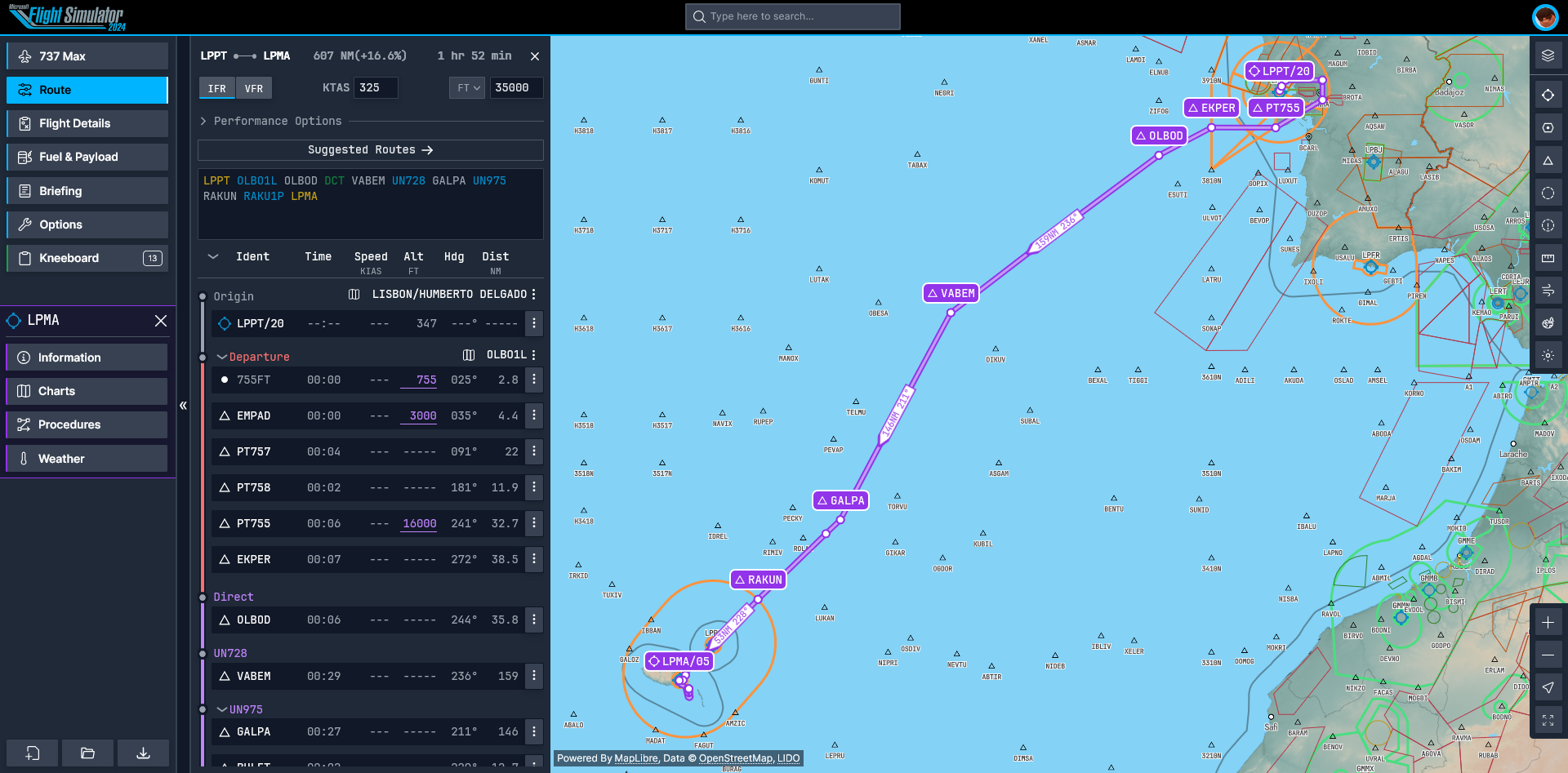
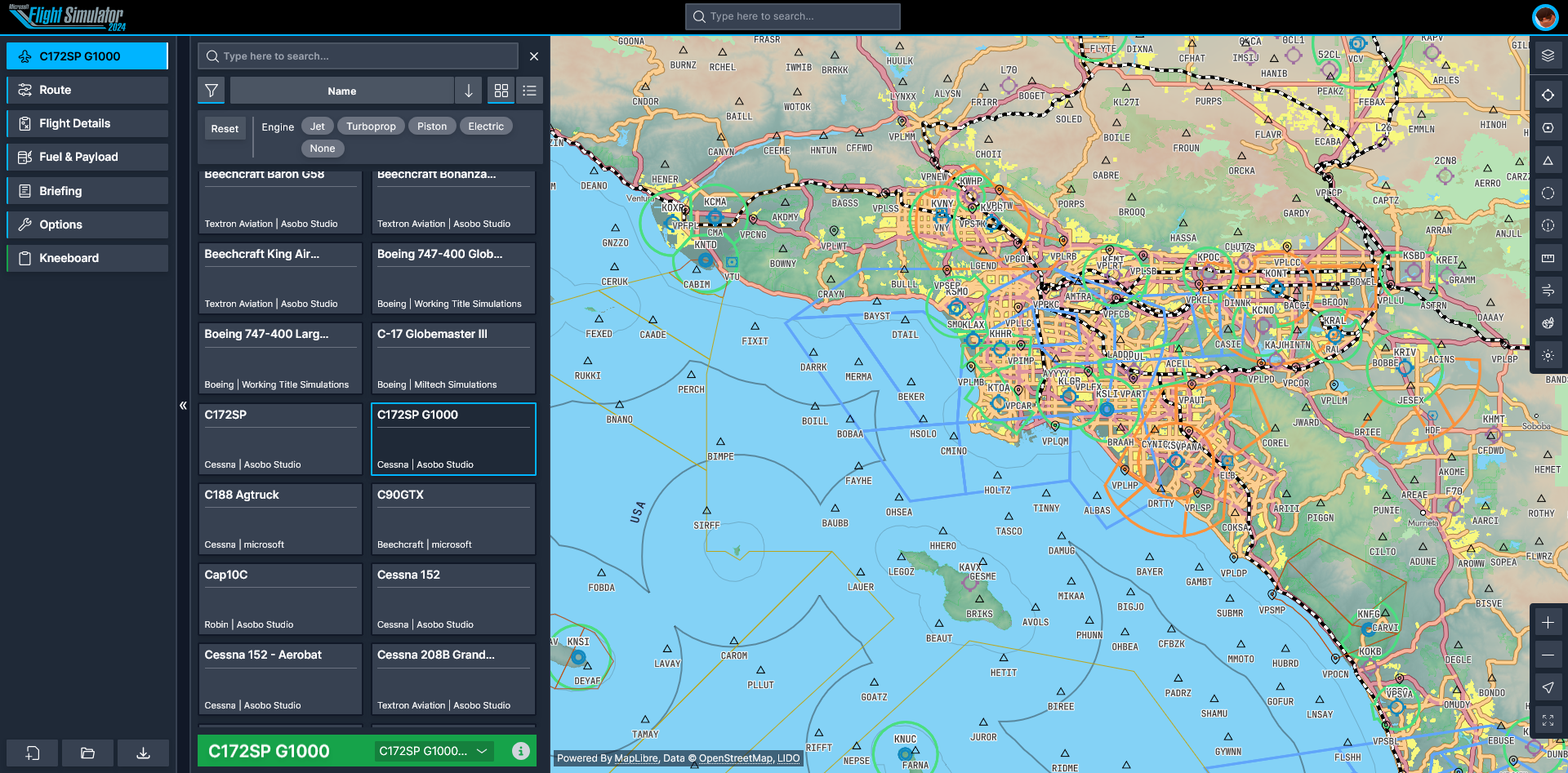
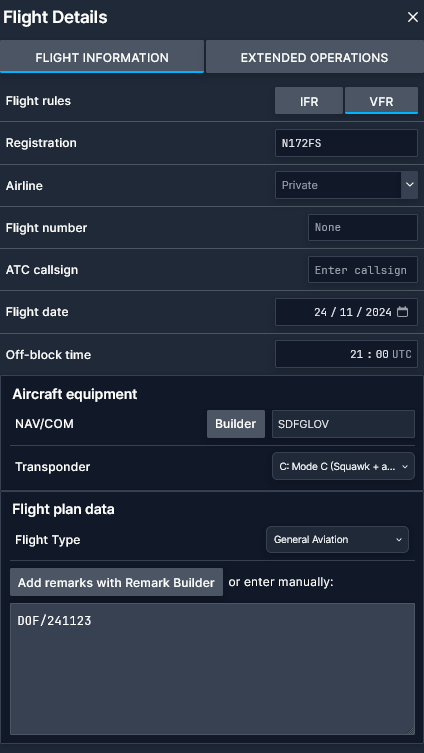
To begin, you’ll use the newly introduced web-based companion flight planner app. This app enables you to create, edit, and share flight plans seamlessly with its user-friendly interface. You can develop your flight route outside of the simulator, then easily transfer it into Flight Simulator 2025 ready for takeoff.
2. Creating the Route:
– Select Airports: Initiate your flight planning by choosing your departure and destination airports.
– Manual and Auto Route Creation: You can either manually input waypoints or utilize the “Auto Route” feature for automatic waypoint connection. This function also provides the option to incorporate airways and fix waypoints essential for IFR flight plans.
– Navigational Aids Integration: The planner supports incorporation of navigational aids (NAVAIDs) to enhance route accuracy, mimicking the detailed planning similar to Navigraph Charts.
3. Adding Arrival and Departure Procedures:
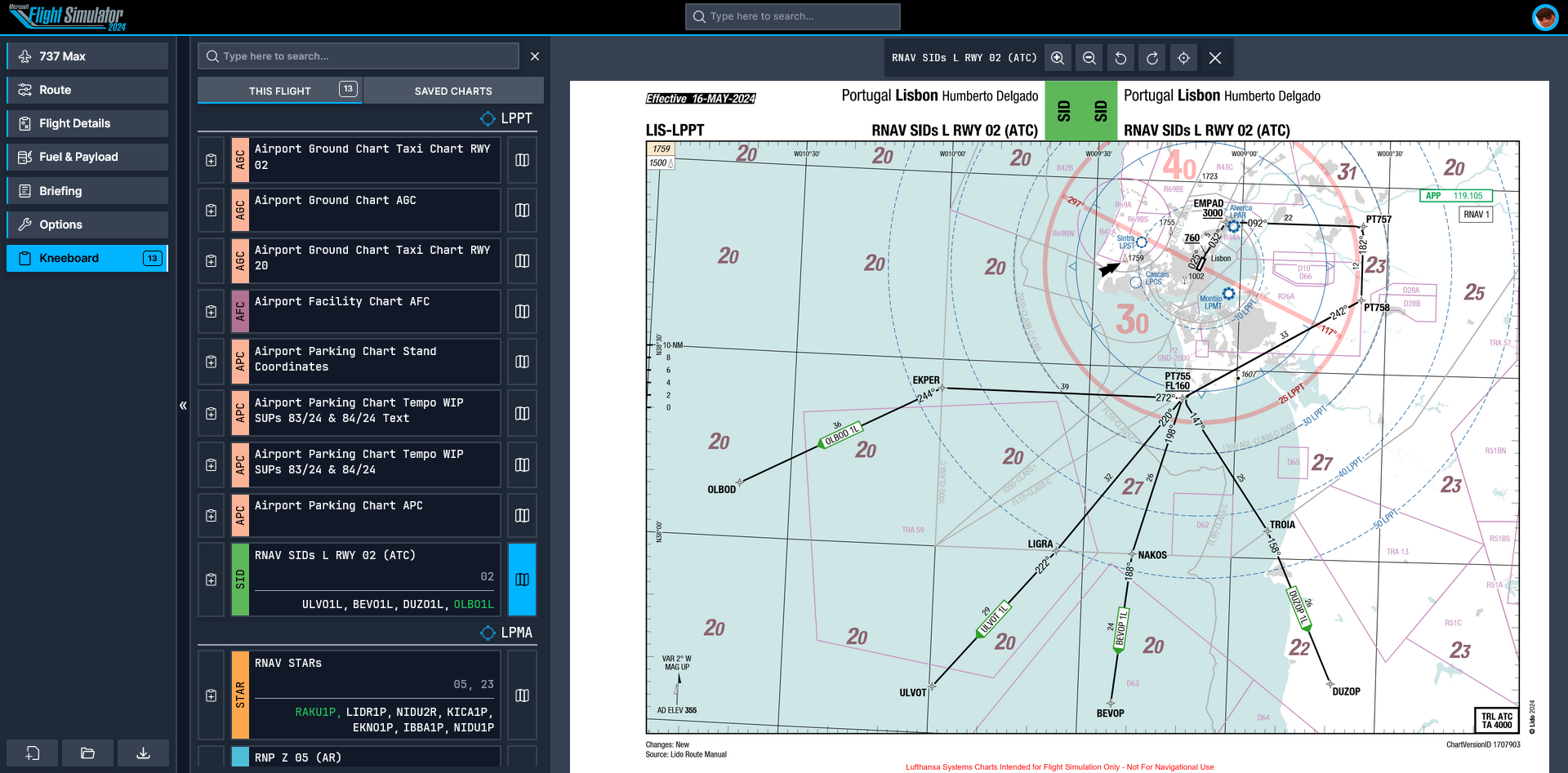
– Procedures: Add Standard Instrument Departures (SIDs) and Standard Terminal Arrival Routes (STARs) to your plan. The tool comes equipped with an “Auto Select” function for arrival procedures that simplifies the process.
– Visual Representation: The planner presents a graphical display of selected arrival routes and approach paths on the map, offering a clear visual guide for your flight.
– Comprehensive Planning: By integrating departure and arrival procedures alongside enroute waypoints, you create a thorough and realistic flight plan.
4. Adjusting Flight Parameters:
– Altitude Constraints: Set altitude limitations for specific waypoints or legs of your flight, which is particularly helpful for simulating Live ATC instructions in IFR flights.
– Weather Customization: Tailor environmental conditions by adjusting weather properties like cloud coverage, precipitation, and wind. You have the option to toggle on/off landmarks and control day/night representations for a more immersive planning experience.
5. Saving and Sharing:
After finalizing your plan, you can save it and share it with friends, making it ideal for multiplayer experiences. The integration to load the plan into Microsoft Flight Simulator is designed to be user-friendly, allowing you to start your flight journey effortlessly with your meticulously crafted route.
Summary of Key Features in Flight Planner
| Feature | Description |
|——————————–|——————————————————————————————————-|
| Manual and Auto Routing | Offers both manual waypoint entry and an “Auto Route” feature for automated connections including airways. |
| Arrival/Departure Procedures| Supports easy additions of SIDs, STARs, and approaches with a visual map layout for clarity. |
| Altitude Constraints | Enables setting altitude restrictions for specific segments of the flight plan to mimic real-world ATC. |
| Weather & Map Overlays | Customize weather conditions and toggle landmarks along with day/night lines to enhance situational awareness. |
| Save & Share Plans | Allows for saving and sharing flight plans for multiplayer flights or future reference. |
By effectively utilizing these steps and features, you can develop intricate and realistic flight plans in Flight Simulator 2025, whether you are flying Visual Flight Rules (VFR) or Instrument Flight Rules (IFR). For more detailed guidance, in-depth tutorials covering the creation and loading of routes are available, which also include tips on incorporating ATC and navigation aids.

Leave a Reply