
How to Play Fortnite with Friends: Online Squad Play and Local Split-Screen Co-op
Fortnite offers two excellent methods for enjoying the game with friends: online squad play (including cross-platform capabilities) and local split-screen co-op. Below, you’ll find a comprehensive guide on how to utilize both options effectively.
How to Squad Up with Friends Online (Cross-Platform Play)
Squadding up online allows you and your friends to team up regardless of your platform, as long as you are linked through Epic Games. Follow these steps:
1. Add Friends on Epic Games:
– Ensure that both you and your friends have Epic Games accounts.
– Open the Epic Games launcher or launch Fortnite.
– Navigate to the Friends menu and use the search function to find your friends by their display names. Send them friend requests to establish connections.
2. Start a Party:
– Launch Fortnite and enter the game lobby from your platform (PC, Xbox, PlayStation, etc.).
– Select either the Duo or Squad game mode to prepare for matchmaking.
3. Invite Friends or Have Them Join:
– In the lobby, your friends will appear in your friend list. They can either join your party by clicking your display name and selecting “Join Party” or you can invite them directly.
4. Play Together:
– Once all friends have joined your party, proceed to start the match. Enjoy strategizing and playing together as a team!
This online method supports cross-platform play, meaning players can seamlessly interact regardless of whether they are on consoles or PC.
How to Play Co-op Locally with Split-Screen Mode
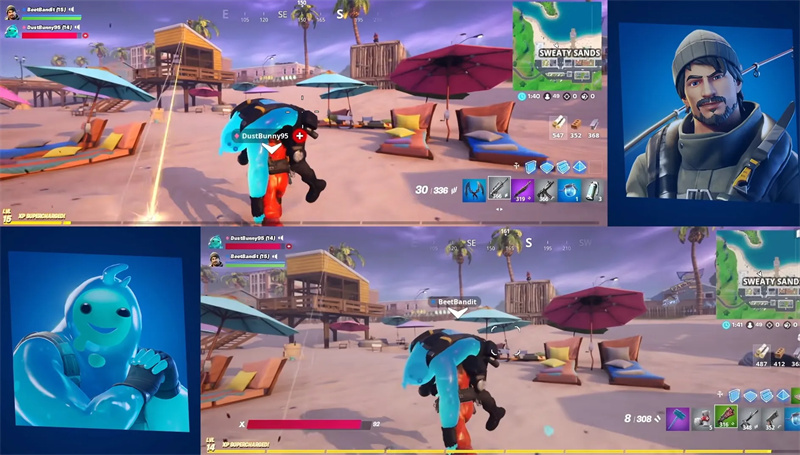
If you’re looking to enjoy Fortnite on the same console with a friend, split-screen mode is available on PlayStation and Xbox. Here’s how to set it up:
1. Set Up Controllers:
– Launch Fortnite and wait until you reach the lobby screen.
– Connect a second controller to your console and turn it on.
2. Log into Console Accounts:
– The second player needs to select their console account. Note that guest or quick play accounts won’t work for split-screen.
– For optimal functionality, it’s recommended that the second player links their account to an Epic Games account.
3. Start Local Multiplayer:
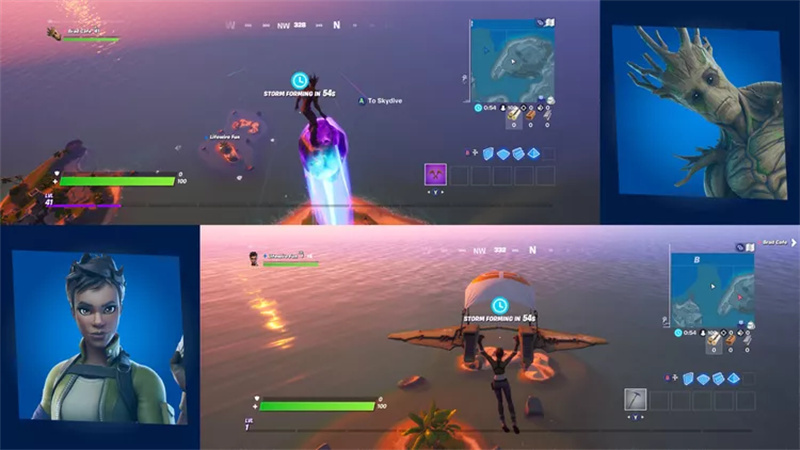
– Once the second player has joined, Fortnite will automatically switch to split-screen mode.
– You can then initiate a match in supported modes, such as Duo or Squad, where both players can play simultaneously on the same screen.
Important Note: Split-screen functionality works only in select modes like Battle Royale and Zero Build. Other modes, such as Solo, Team Rumble, Limited Time Modes, Save the World, Ranked Mode, and availability on platforms like PC and mobile, do not support split-screen multiplayer.
Summary
– For Online Co-op with Friends:
– Add Friends: Use Epic Games to connect.
– Create a Party: Enter the Fortnite lobby and choose your game mode.
– Invite/Join: Have friends join your party, and start playing together.
– For Local Co-op:
– Set Up: Use split-screen mode on either PlayStation or Xbox by connecting a second controller.
– Log In: Have the second player log in with their account.
– Start Playing: Engage in supported game modes like Battle Royale.
Both methods provide a fantastic way to enjoy Fortnite with friends, whether you’re playing remotely through online matchmaking or having fun together on the same couch. Dive into the action and make the most out of your Fortnite experiences!

:max_bytes(150000):strip_icc()/how-to-use-the-fortnite-split-screen-10-961856647b37423885289ede1e8344a1.jpg)
:max_bytes(150000):strip_icc()/how-to-use-the-fortnite-split-screen-e1bea3d8dee841af841e417a2778bbfc.jpg)
Leave a Reply