
Playing multiplayer in Beat Saber allows you to engage in fun and competitive gameplay with friends or random opponents online. Here’s a detailed guide on how to set up and enjoy multiplayer, along with additional insights into its features.
1. Basic Multiplayer Setup
– Platforms: Beat Saber supports multiplayer on both Meta Quest and Steam platforms, which is great news for players as cross-play is enabled. This means you can easily team up or compete against friends, irrespective of the platform they are using.
– Number of Players: You can engage in matches with up to five players. This means you can either compete with 1 to 4 friends or dive into a match with random opponents, depending on your preference.
2. How to Play Multiplayer
1. Launch the Game: Start Beat Saber on your device.
2. Access Multiplayer: Navigate to the multiplayer option in the game’s main menu. The exact location may vary slightly depending on whether you are on Meta Quest or Steam.
3. Join or Create a Match: You have the option to join a pre-existing match by searching for available games or you can create your own match and invite friends to join in.
3. Official Multiplayer Features
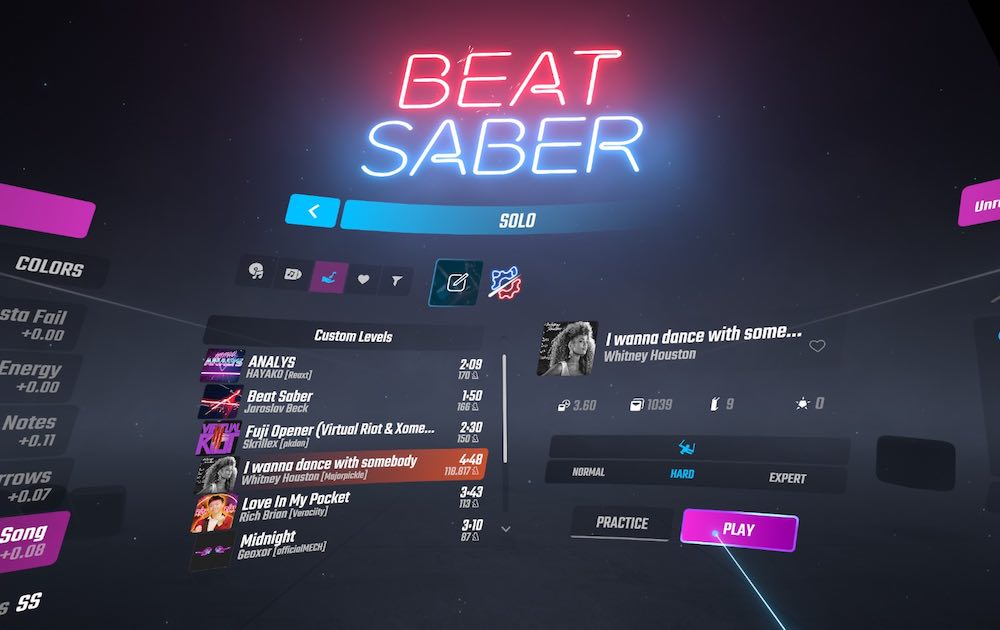
– Songs: You can enjoy all official songs in the base game as well as content from any Music Packs (DLCs) in multiplayer mode. Future Music Packs will be integrated into the multiplayer experience, providing a wide variety of music to choose from.
– Modes: While certain levels like 90° are not supported in multiplayer, players can enjoy the One Saber mode and No Arrow mode by adjusting the game’s options to suit their gameplay style.
– Voice Chat: While Beat Saber does not feature a built-in voice chat option, players are encouraged to use integrated voice communication software available on their respective platforms for team communication.
4. Modded Multiplayer
For players looking to spice up their multiplayer experience with custom songs and additional features, modded multiplayer offers a viable option. However, it does involve some technical setup:
How to Install Modded Multiplayer:
1. Required Tools: You’ll need a PC or laptop, a Meta Quest 2 headset, and a type-C USB cable.
2. Mods: Visit websites like QuestModding.com to download necessary mods. Commonly used mods include “Beat Together” and “Multiplayer Core.”
3. Installation: Installation can be intricate and varies based on the game version. It’s advisable to consult specific tutorials available online for step-by-step guidance on installing these mods.
5. Additional Considerations
– Cross-Play: Cross-play is seamlessly supported between Meta Quest and Steam, enhancing the multiplayer experience. However, note that PS VR users do not have cross-play capabilities.
– Subscription Requirements: If you’re playing on PS VR, a PlayStation Plus subscription is mandatory to access multiplayer modes.
– Single Account Usage: Keep in mind that only one player can use their account for multiplayer at any given time, preventing multiple users from accessing the same account in competitive matches.
Conclusion
In conclusion, Beat Saber’s multiplayer mode provides a versatile platform for competitive gameplay, enhanced by its cross-play capabilities and a variety of music options. While official multiplayer offers a fulfilling experience, players can also explore modded multiplayer for additional features. Remember that modding requires careful attention to installation procedures and may not receive official support from the developers. Enjoy your time slicing beats and competing with friends in this dynamic rhythm game!



Leave a Reply