
To achieve stutter-free screen recording on your Xbox Series X, the optimal choice for an external hard drive is an **external Solid State Drive (SSD)** that utilizes **USB 3.0 or higher** connectivity and is formatted to **NTFS** on a PC. While traditional Hard Disk Drives (HDDs) can store recordings, the faster write speeds of an SSD are crucial for capturing high-resolution gameplay (like 4K) without introducing stutters or dropped frames.
Here’s a detailed breakdown of what to look for and why:
**1. Solid State Drive (SSD) is Paramount:**
Unlike HDDs, which rely on spinning platters and read/write heads, SSDs use flash memory, offering significantly faster data transfer speeds. This speed is vital for the continuous, high-bandwidth writing required for smooth screen recording, especially at higher resolutions and frame rates. Many sources confirm that SSDs are recommended for optimal capture performance.
**2. USB 3.0 or Higher Connectivity:**
The Xbox Series X requires any external storage device used for recording to be connected via USB 3.0 or a later standard (e.g., USB 3.1, USB 3.2). This ensures sufficient bandwidth for the data stream from your console to the external drive. Look for drives with a blue USB port or connector, which typically indicates USB 3.0 compatibility.
**3. NTFS Format (Formatted on a PC):**
For media storage and screen recording, your external drive *must* be formatted to the NTFS file system. If you connect a new drive to your Xbox and allow the console to format it, it will use a proprietary format suitable for games but not ideal for easily transferring recorded clips to a PC. Therefore, it’s essential to format the drive to NTFS on a computer *before* connecting it to your Xbox Series X and setting it as the capture location.
**4. Sufficient Capacity:**
The Xbox Series X allows you to record up to one hour of gameplay at 1080p or 4K resolution to an external drive. While the minimum requirement for an external drive is 128GB, consider a larger capacity (e.g., 500GB, 1TB, or more) if you plan on recording many long clips, especially in 4K, as these files can be quite large.
**Recommended External SSDs for Screen Recording:**
Based on performance and user recommendations, consider these external SSD options:
* **Samsung T5 or T7 Portable SSDs:** The Samsung T5 and its successor, the T7, are frequently cited as excellent external USB SSDs due to their reliability and fast transfer speeds.
* **SanDisk Extreme Portable SSD:** Another popular and robust choice known for its speed and durability.
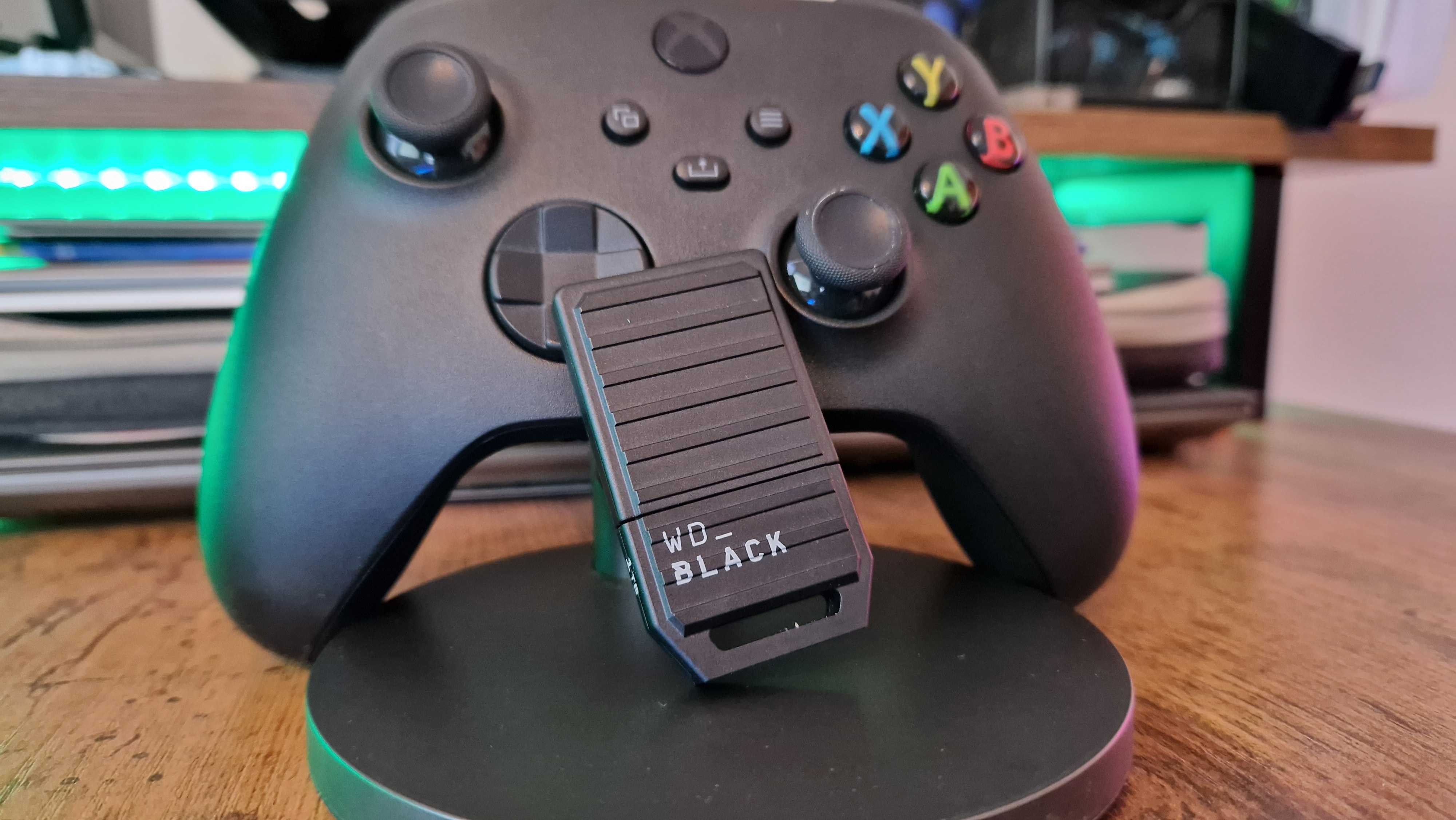
* **WD_Black P40 Game Drive SSD:** This drive is specifically designed for gaming and offers fast performance, making it a strong contender for stutter-free recording.
* **Crucial X8 or X10 Pro Portable SSDs:** These drives offer good performance and value, with the X10 Pro being noted for its portability.
* **G-Technology SSDs:** These are also mentioned as compatible and effective for recording.
**Important Setup Steps on Xbox Series X:**
1. **Format on PC:** Connect your chosen external SSD to a PC and format it to NTFS.
2. **Connect to Xbox:** Plug the NTFS-formatted external SSD into any USB 3.0 port on your Xbox Series X.
3. **Set as Capture Location:**
* Go to **Settings** on your Xbox.
* Navigate to **Preferences**.
* Select **Capture & Share**.
* Under “Capture location,” change it from “Internal” to your newly connected external SSD.
By following these guidelines, you’ll be well-equipped to capture your epic gaming moments on the Xbox Series X without frustrating stutters or interruptions. Now get out there and record some legendary gameplay!

Leave a Reply