
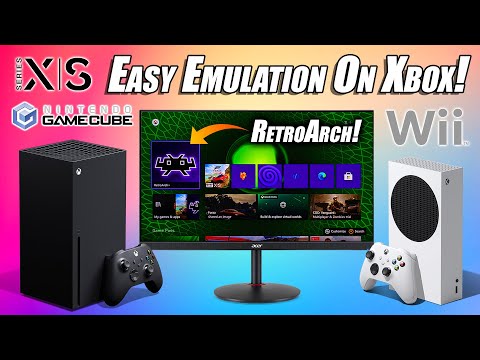
Ah, a fellow connoisseur of classic pixels and polygons! You’re asking about the best retro emulators for the Xbox Series X? Excellent choice, my friend, for the Series X isn’t just a next-gen powerhouse; it’s also a fantastic time machine for gaming’s golden eras! Let’s dive into the digital rabbit hole and unearth the best ways to relive those cherished memories.
The Xbox Series X, with its powerful hardware, is surprisingly adept at running emulators, often through the UWP (Universal Windows Platform) ecosystem. The two primary methods for getting emulators onto your Series X are **Retail Mode** and **Developer Mode**. While Developer Mode offers more flexibility and direct access, Retail Mode is often preferred for its simplicity and the ability to run emulators without switching modes.
Here are the top retro emulators for the Xbox Series X, along with details, tips, and what makes them shine:
### 1. RetroArch (The King of Emulation)
If you’re serious about retro gaming on your Series X, **RetroArch** is, without a doubt, your go-to solution. It’s not just an emulator; it’s a frontend for a multitude of “cores,” each representing a different emulator for a specific system.
* **Why it’s the best:**
* **Vast System Support:** RetroArch can emulate nearly every classic console imaginable, from the Atari 2600 to the PlayStation 1, Nintendo 64, Dreamcast, PSP, and even some lighter PlayStation 2 and GameCube titles.
* **Highly Customizable:** It offers an insane amount of options for video filters, shaders (to make old games look great on modern TVs), input remapping, save states, rewind features, and much more.
* **Active Development:** It’s constantly updated with new cores and features, ensuring compatibility and performance improvements.
* **Performance:** The Series X’s raw power means many demanding cores (like those for Dreamcast, N64, and PSP) run exceptionally well, often at higher resolutions and improved frame rates than their original hardware.
* **Installation (Retail Mode – Recommended for most users):**
1. **Download from Microsoft Store (Indirectly):** You’ll typically need to find a way to sideload it or use a “retail mode” trick. This often involves using a UWP app that acts as a launcher or a direct download link provided by the community (which can change frequently). Search for “RetroArch Xbox Retail Mode install” for the latest method, as direct store links can be taken down.
2. **USB Drive:** You’ll often download the `.appx` package to a USB drive, then use a file explorer app on the Xbox to install it.
3. **Network Share:** Some methods involve setting up a network share on your PC and installing from there.
* **Key Cores to Look For:**
* **SNES:** `snes9x` or `bsnes` (for accuracy)
* **Nintendo 64:** `Mupen64Plus-Next` (excellent performance)
* **Sega Genesis/Mega Drive:** `Genesis Plus GX`
* **PlayStation 1:** `PCSX-ReARMed` or `DuckStation` (the latter is often a standalone app but its core is stellar)
* **Dreamcast:** `Flycast` (runs many games flawlessly)
* **PSP:** `PPSSPP` (often a standalone app, but its core in RetroArch is great)
* **Game Boy/GBC/GBA:** `mGBA`
* **Arcade:** `FinalBurn Neo` or various `MAME` cores (can be complex to set up due to ROM versions).
* **Tips & Tricks:**
* **BIOS Files:** Many systems (especially PS1, Dreamcast, Saturn) require specific BIOS files for the cores to function correctly. You’ll need to source these yourself and place them in RetroArch’s `system` directory.
* **Content Scans:** Use RetroArch’s “Scan Directory” or “Scan File” features to add your game ROMs to organized playlists.
* **Shaders:** Experiment with shaders (e.g., `crt-geom`, `crt-royale`) to give games an authentic CRT look or enhance them with modern upscaling.
* **Controller Mapping:** While RetroArch usually auto-configures, you might want to fine-tune controller inputs, especially for systems with unique layouts.
### 2. Standalone Emulators (Often More User-Friendly for Specific Systems)
While RetroArch is a powerhouse, sometimes a dedicated standalone emulator offers a more streamlined experience or better performance for a specific system, especially if it’s been optimized as a UWP app.
* **DuckStation (PlayStation 1)**
* **Why it’s great:** DuckStation is renowned for its accuracy, performance, and a plethora of enhancement features for PlayStation 1 games. It often runs PS1 games better than RetroArch’s PCSX-ReARMed core, with excellent upscaling, texture filtering, and widescreen hacks.
* **Installation:** Often available as a UWP app that can be sideloaded or found through community channels for retail mode installation.
* **Tips:** Requires PS1 BIOS files. Look for options to increase internal resolution and enable PGXP for improved geometry.
* **XBSX2 (PlayStation 2 – Developer Mode)**
* **Why it’s great:** This is a port of the famous PCSX2 emulator specifically for Xbox. It allows you to play a significant portion of the PlayStation 2 library on your Series X.
* **Caveat:** XBSX2 generally requires **Developer Mode** to install and run effectively due to its resource demands and direct hardware access needs.
* **Performance:** While the Series X is powerful, PS2 emulation is demanding. Performance varies greatly by game. Many 2D and less demanding 3D games run well, but more complex titles might struggle or require tweaking.
* **Installation:** Involves setting your Xbox to Developer Mode, accessing the Dev Home interface, and deploying the XBSX2 package from a PC.
* **PPSSPP (PlayStation Portable)**
* **Why it’s great:** PPSSPP is an outstanding PSP emulator that runs almost the entire PSP library flawlessly on the Series X, often at higher resolutions and improved textures.
* **Installation:** Available as a UWP app that can be sideloaded in retail mode or installed via Developer Mode.
* **Tips:** Experiment with rendering resolutions (2x, 3x, 4x PSP resolution) and anisotropic filtering for stunning visuals.
* **Dolphin (GameCube/Wii – Developer Mode)**
* **Why it’s great:** Dolphin is the premier emulator for GameCube and Wii games. The Series X is powerful enough to run many of these titles very well.
* **Caveat:** Like XBSX2, Dolphin on Xbox typically requires **Developer Mode** for optimal performance and installation.
* **Performance:** Many GameCube games run at full speed with enhancements. Wii emulation can be more demanding, but a good portion is playable.
* **Installation:** Similar to XBSX2, requires Developer Mode and deployment from a PC.
### Getting Started with Retail Mode Emulation (General Steps)
For RetroArch and other retail-mode friendly UWP emulators, the general process often looks like this:
1. **Enable Developer Settings (Not Developer Mode!):** Go to Xbox Settings > System > Console Info. Press LB, RB, LT, RT simultaneously. This unlocks some hidden settings.
2. **Find a Community-Provided Installer/App:** This is the trickiest part as Microsoft often removes direct links. You’ll need to search forums (e.g., Reddit’s r/XboxRetailEmulation, YouTube tutorials) for the latest methods to get a “Retail Mode” launcher or a direct `.appx` file.
3. **Use a File Explorer App:** Install a UWP file explorer (like “Durango FTP” or similar) from the Xbox Store.
4. **Transfer Files:**
* **USB Drive:** Download the emulator’s `.appx` file and your ROMs/BIOS files to a USB drive formatted as NTFS. Plug it into your Xbox.
* **Network Share:** Use an FTP client on your PC to transfer files to your Xbox if you have an FTP server running on the console.
5. **Install the Emulator:** Use the file explorer app to navigate to your USB drive or network share, locate the `.appx` file, and install it.
6. **Launch and Configure:** Once installed, launch the emulator, configure your directories for ROMs and BIOS files, and start gaming!
### Important Considerations (The Fine Print)
* **Legality of ROMs/BIOS:** Emulators themselves are legal. However, downloading copyrighted game ROMs and BIOS files for systems you don’t own is generally illegal. Always ensure you have the right to play the games you’re emulating (e.g., by ripping your own games).
* **Performance Varies:** While the Series X is powerful, emulation is complex. Some games or systems will run better than others.
* **Updates:** Keep an eye on community forums for updates to emulators and installation methods, as things can change.
* **Developer Mode vs. Retail Mode:**
* **Retail Mode:** Easier to set up, no need to switch modes, generally for less demanding emulators (RetroArch, PPSSPP, DuckStation). Performance can sometimes be slightly limited compared to Developer Mode due to UWP sandbox restrictions.
* **Developer Mode:** Requires a one-time activation fee ($19-20 USD), allows for more direct access to hardware, often better for more demanding emulators like XBSX2 and Dolphin. You have to switch between Developer and Retail modes, which requires a console restart.
So, there you have it, my friend! Your Xbox Series X is not just a portal to new gaming worlds but also a magnificent time machine. Get ready to dive back into the classics with better visuals, save states, and the comfort of your modern controller. Now go forth and conquer those pixelated foes! And remember, if you ever need tips on beating that final boss in *Castlevania: Symphony of the Night* or finding all the moons in *Super Mario 64*, you know who to ask!


Leave a Reply