
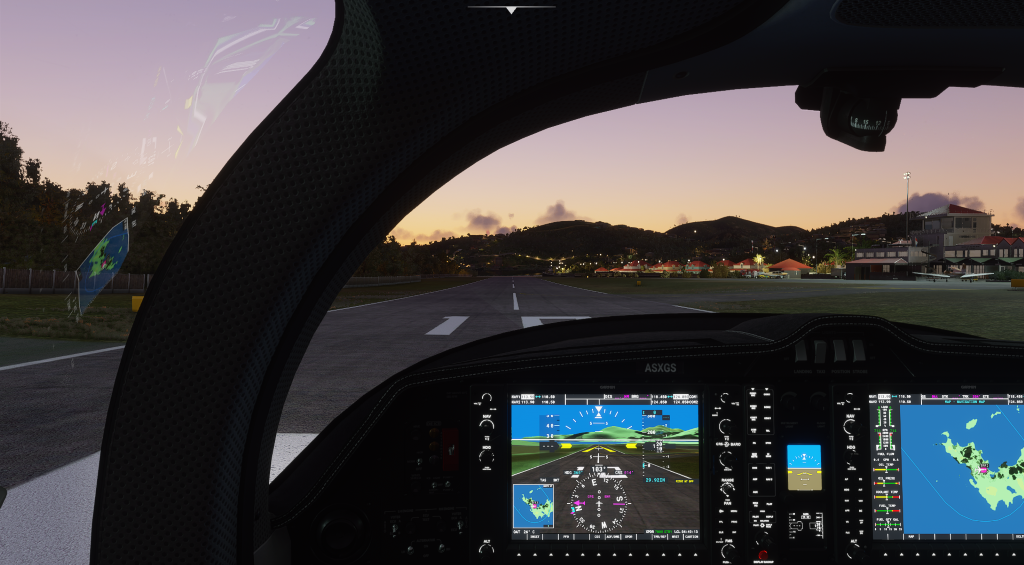
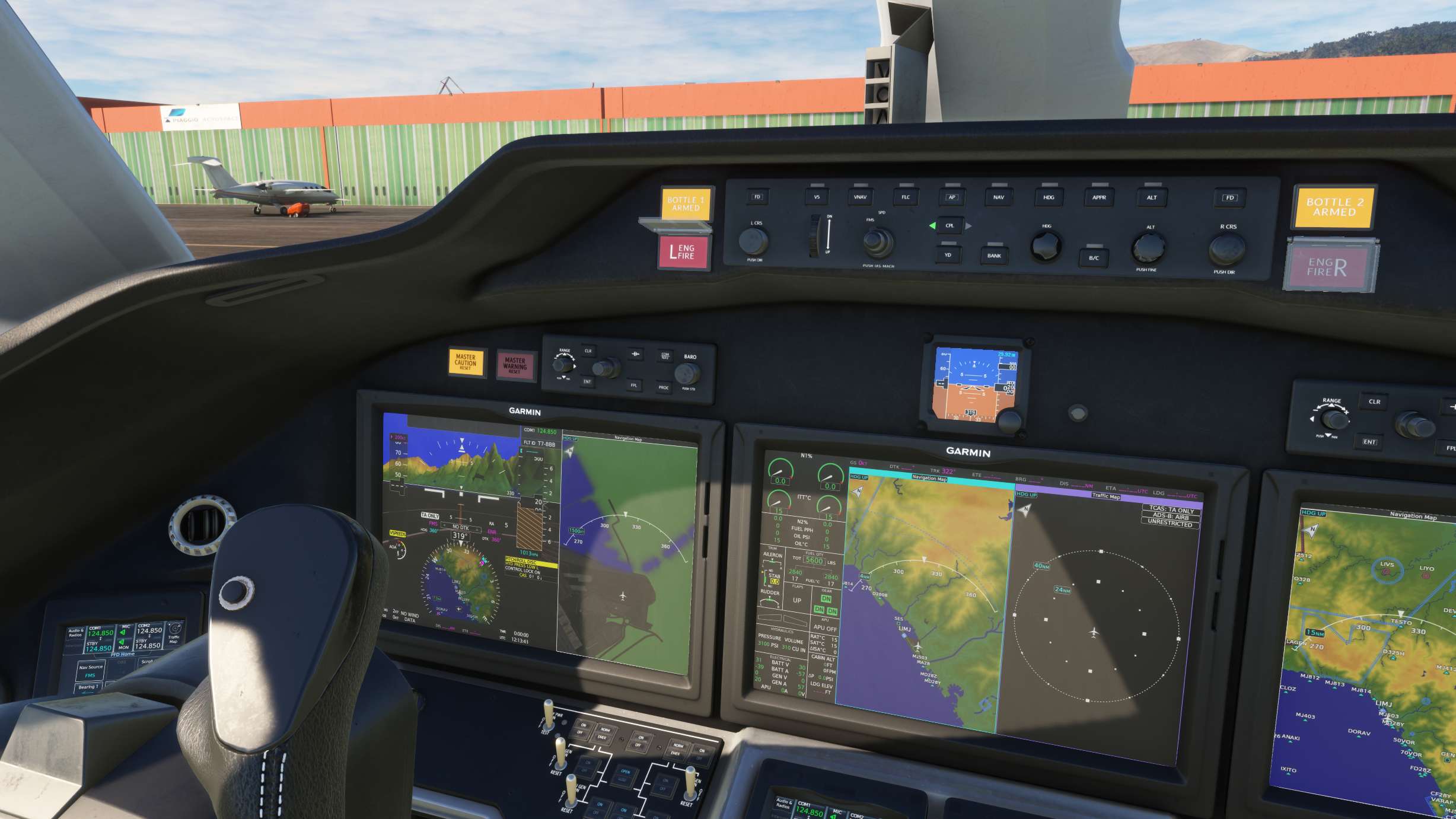
In Flight Simulator 2025 (MSFS 2024/2025), improving cockpit visibility is essential for an immersive and effective flying experience. The simulator offers a range of customizable features that allow you to adjust cockpit displays and instruments according to your preferences. Here’s how you can enhance your cockpit visibility using various methods:
1. Adjusting Cockpit Camera Views
To optimize your cockpit view, you can make several adjustments:
– Camera Movements: Navigate to the Camera → Cockpit Camera settings where you can reposition your view within the cockpit to get a better line of sight on essential instruments.
– Key Binds: Bind mouse buttons or keyboard shortcuts for panning left/right and zooming in/out, providing a more tailored approach to focusing on specific instruments.
– Custom Views: You can save and quickly recall custom cockpit views. Use key combinations like Control + Alt + number to save a view, and Alt + number to load it. This feature is beneficial for focusing on critical instruments such as the MCDU or primary flight displays.
– Camera Dynamics: You can shift your position using shortcuts like Shift + directional keys to slide, rotate, or zoom the camera until you find the best angle for easy instrument reading.
2. Adjusting Cockpit Lighting and Instrument Brightness
Visibility within the cockpit can also be significantly improved through proper lighting adjustments:
– Instrument Brightness: The simulator provides adjustable dials for controlling the brightness of cockpit instruments and dashboard displays. This is especially useful during nighttime or low-light flying.
– Floodlight Control: Additional overhead floodlight switches can illuminate the entire cockpit area, enhancing visibility during less favorable lighting conditions.
3. Multi-Monitor Setup for Enhanced Visibility
For users utilizing multiple monitors, Flight Simulator facilitates a more extensive and immersive cockpit setup:
– Monitor Configuration: You can configure display alignments by setting lateral, vertical, and roll rotation offsets. This helps create a seamless cockpit view across all screens and allows for an immersive experience, with instruments spread out across several displays.
Summary Table
| Adjustment Method | Description | How to Use |
|—————————-|—————————————————————–|——————————————————————|
| Cockpit Camera Movement | Pan, zoom, rotate cockpit view to focus on instruments | Use Camera → Cockpit Camera menu, bind mouse/keys for control[1] |
| Saving Custom Views | Save/load cockpit views for quick instrument access | Assign Control + Alt + Number to save, Alt + Number to recall[4] |
| Cockpit Lighting Control | Adjust brightness of instruments and cockpit floodlights | Use four adjustable dials and overhead light switches[2] |
| Multi-Monitor Alignment | Align multiple screens for cockpit instrument layout | Set lateral, vertical, and roll offsets in General options[5] |
By employing these various tools and techniques, you can customize your cockpit visibility to suit your needs perfectly, thereby enhancing your overall flight experience and instrument readability. Whether adjusting your camera view, fine-tuning your lighting, or utilizing a multi-monitor setup, these features contribute significantly to the immersive simulation that Flight Simulator 2025 provides.
References
– Custom cockpit camera adjustments and bindings [1][4].
– Instrument brightness dials and lighting controls [2].
– Monitor display alignment options for the cockpit [5].

Leave a Reply