
Simulating Real-Time Cross-Time-Zone Flights in Flight Simulator 2025
Flight Simulator 2025 (MSFS 2024/2025) aims to provide a heightened sense of realism, particularly when it comes to simulating flights across various time zones. However, users have encountered challenges with certain time zone inaccuracies which impact the portrayal of local times at airports. Here’s an overview of the issues and effective strategies to simulate real-time flights across time zones more accurately.
Time Zone Issues and Corrections
1. Observed Inaccuracies:
– Many users reported that the local time display for key airports was incorrect before official daylight saving changes. A notable example is London Heathrow, which erroneously displayed its time as UTC instead of GMT+1 due to daylight saving settings.
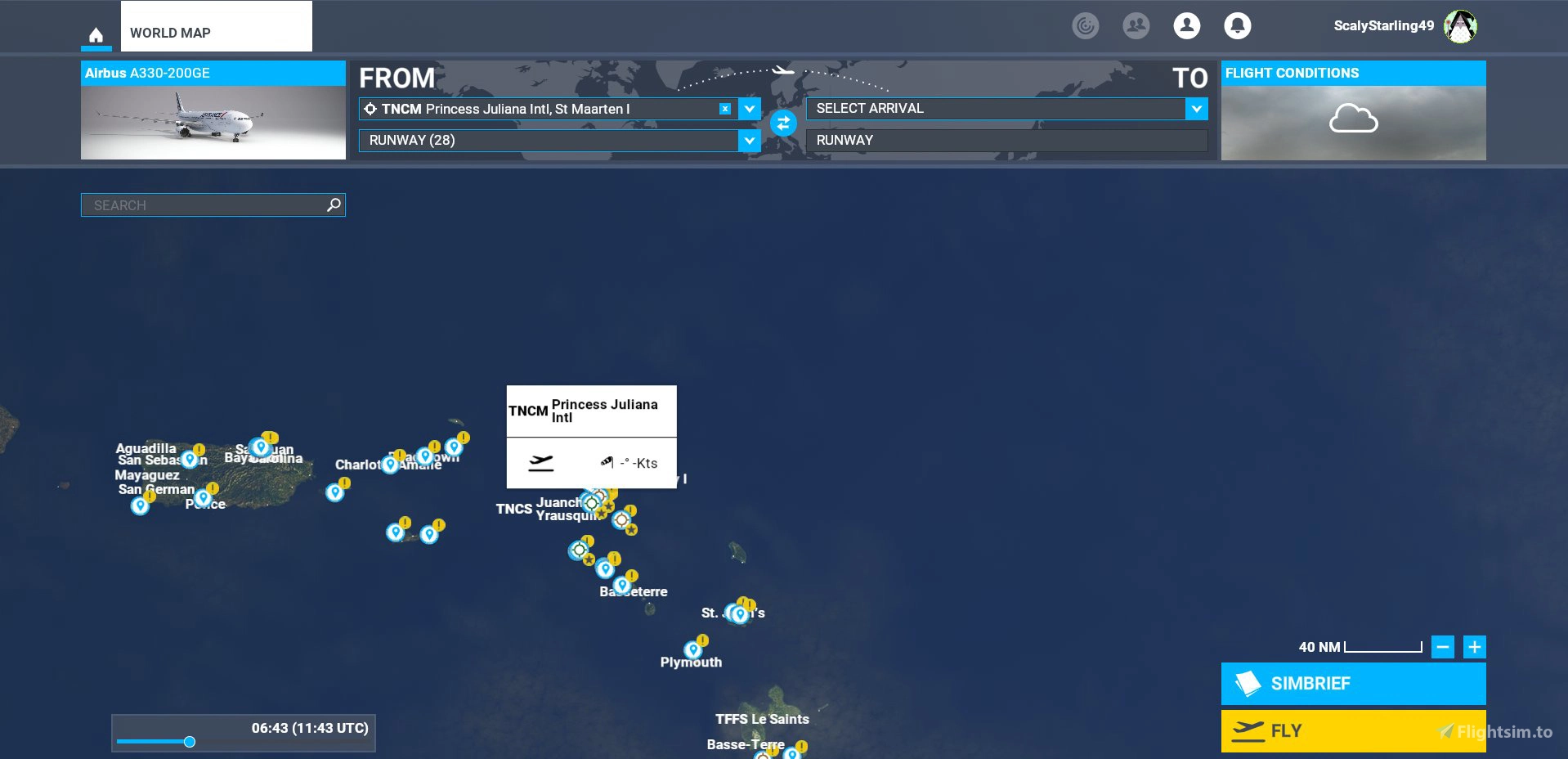
– Similar discrepancies were found in regions like Hawaii and various Caribbean airports, where displayed local times deviated significantly from actual time zone settings, resulting in confusion regarding flight schedules.
2. Community Solutions:
– To address the widespread issues, a community-driven addon—released by Sofly/Skytech in April 2025—fixes inaccuracies in approximately 40 different time zone regions.
– This addon corrects both standard time offsets and daylight saving time adjustments, restoring the accuracy of local times during flights, ensuring they are aligned with real-world standards [2].
How to Simulate Real-Time Cross-Time-Zone Flights
Here are practical steps that you can take to ensure accurate time representation while flying in MSFS 2025:
1. Install a Time Zone Correction Addon:
– Using a reliable addon, such as the one from Sofly/Skytech, will correct various time zone inaccuracies. These can typically be accessed through the Sim Marketplace or other trusted third-party sites, which provide necessary fixes for various regions including, but not limited to, the Aleutian Islands, Yukon, and Arizona [4].
2. Set Your System Time Zone Appropriately:
– The simulator often relies on your PC’s system time settings to display local times accurately. Make sure your Windows time zone settings align with your current physical location. This ensures that any local time representations are rooted in your actual geographical position [3].
3. Utilize UTC-Based Flight Planning:
– Many real-world pilots plan using Coordinated Universal Time (UTC) to mitigate any confusion that arises from local time differences. As such, planning your flights using UTC times will provide you with a consistent framework, regardless of the potential time zone inaccuracies present in the simulator.
4. Stay Informed About Daylight Saving Time Changes:
– Always be aware of the daylight saving transitions in the areas you are flying. While the community addon should reflect these changes accurately, having a good understanding of the real-world schedule will aid in anticipation of proper local time representations during your flights.
Summary Table
| Step | Description |
|——————————–|——————————————————|
| Install Time Zone Correction| Rectifies inaccurate offsets and daylight saving time (DST) transitions |
| Set PC Time Zone | Ensures local time corresponds with your physical location |
| Use UTC Planning | Provides consistency across various time zones |
| Track DST Changes | Keeps local times synchronized with seasonal adjustments |
Conclusion
By implementing community-developed time zone fixes alongside maintaining accurate system settings and utilizing UTC for flight planning, you can effectively enhance your flying experience in Flight Simulator 2025. These strategies will allow you to simulate a more realistic and immersive experience as you navigate through different time zones in the virtual skies.




Leave a Reply