
To change saber colors, skins, and environments in Beat Saber, the methods vary by platform and whether you choose to use official features or mods. Below is a detailed breakdown of the available options:
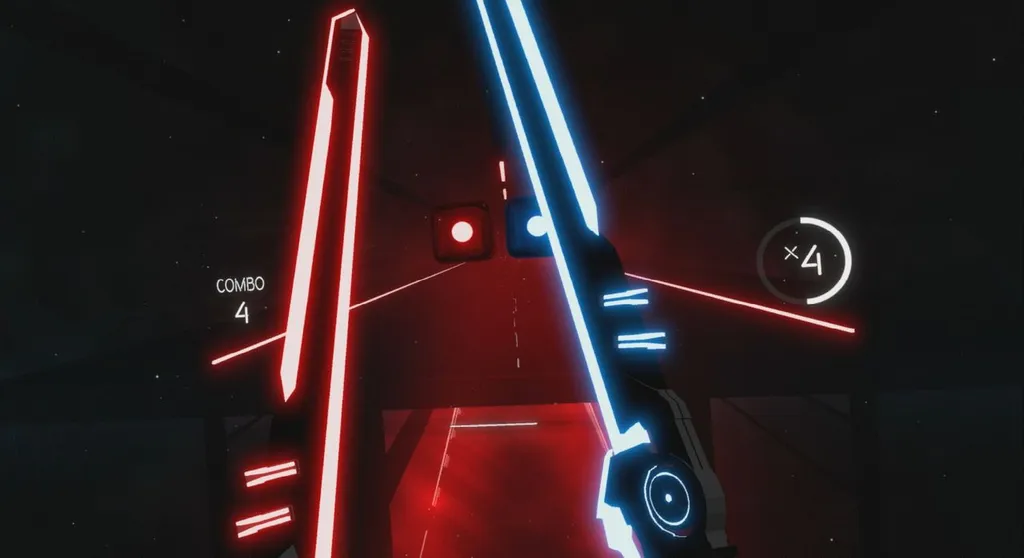
Changing Saber Colors
Official Methods (No Mods Needed)
1. Consoles (PSVR, PS4, PS5, Quest):
– Navigate to the main menu or into Solo mode.
– Select the “Colors” option.
– Choose “Override Default Colors.”
– Select a color slot (typically four available).
– Click “Edit” and decide which element to customize (e.g., left saber, right saber, notes, background, walls).
– Use the provided interface to select your desired color and confirm your selection. Some platforms may also allow adjustments to brightness or hue.
2. PC (Official/With Official Mod Support):
– Open the game and navigate to settings or your profile section.
– Look for a “Colors” or “Player Settings” tab.
– If the option is available, toggle “Override Default Colors” and adjust the same elements as described above.
– Depending on your setup or installed mods, there may be additional options for color customization.
Note: On certain platforms, color customization may be limited to preset colors or a restricted palette.
Modding (PC Only)
1. Custom Colors Mod:
– Download and install a mod, such as “CustomColors,” from the community.
– Access mod settings in-game (usually found under a “Mods” or “Custom Colors” tab).
– Adjust RGB values for sabers, notes, walls, and lighting.
– Advanced settings include the ability to create custom presets and modify brightness.
2. Rainbow and Dynamic Effects:
– Some mods allow for dynamic or rainbow effects, offering more lively aesthetics than standard settings.
Changing Saber Skins
1. Official Skins:
– Currently, Beat Saber does not support custom saber skins on most platforms. There may be occasional themed saber skins available through special events, but these are rare and depend on platform specifications.
2. Modding (PC Only):
– Use mod management tools (e.g., ModAssistant or BSManager) to install saber skin mods.
– Download custom saber models from the Beat Saber modding community.
– Place the downloaded files in the `CustomSabers` directory.
– Select your desired saber skin from within the mods menu in-game. Keep in mind that these skins are purely cosmetic and do not influence gameplay.
Changing Environments
1. Official Environments:
– In the song selection screen, after selecting a song, you can choose an environment from available options (e.g., standard, triangles, fire). Some environments may be unlocked through game progress, achievements, or downloadable content (DLC).
2. Modding (PC Only):
– Install environment mods using a mod manager.
– Download custom environmental packs from the Beat Saber modding community.
– Place these files in the `CustomPlatforms` directory.
– When selecting a song, you can choose your custom environment before starting.
Platform Differences and Limitations
| Platform | Official Color Customization | Mod Support | Skins | Custom Environments |
|——————-|———————————|—————–|———–|————————-|
| PC | Yes (with mods/updates) | Full | Yes | Yes |
| PSVR/PS4/PS5 | Yes (official) | None | No | Limited (official) |
| Quest (Native) | Yes (official) | Limited | No | Limited (official) |
Summary
– Saber Colors: Most platforms provide official color customization for sabers and related elements; PC users can enjoy enhanced options through mods.
– Saber Skins: Custom saber skins are not officially supported across most platforms, with options available only on PC via mods.
– Environments: All platforms allow for changeable in-game environments, but custom environments can only be accessed through mods on PC.
This guide encapsulates the current methods for modifying saber colors, skins, and environments in Beat Saber, providing a comprehensive overview for players wishing to enhance their gaming experience.


Leave a Reply