
Having trouble connecting to the action in Rainbow Six Siege, eh? Sounds like the servers are throwing a digital smoke grenade your way! Don’t worry, even the most elite operators face connection challenges. Let’s get you back in the game, defusing bombs and breaching walls, not battling your router.
Here’s a detailed breakdown of what to do when Rainbow Six Siege servers decide to go rogue:
### Rainbow Six Siege Server Issues: Your Guide to Getting Back in the Fight
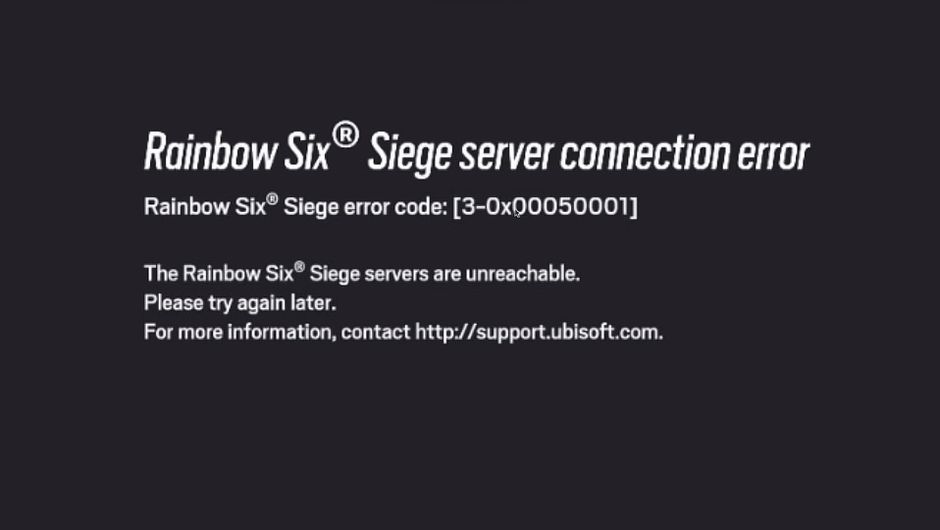
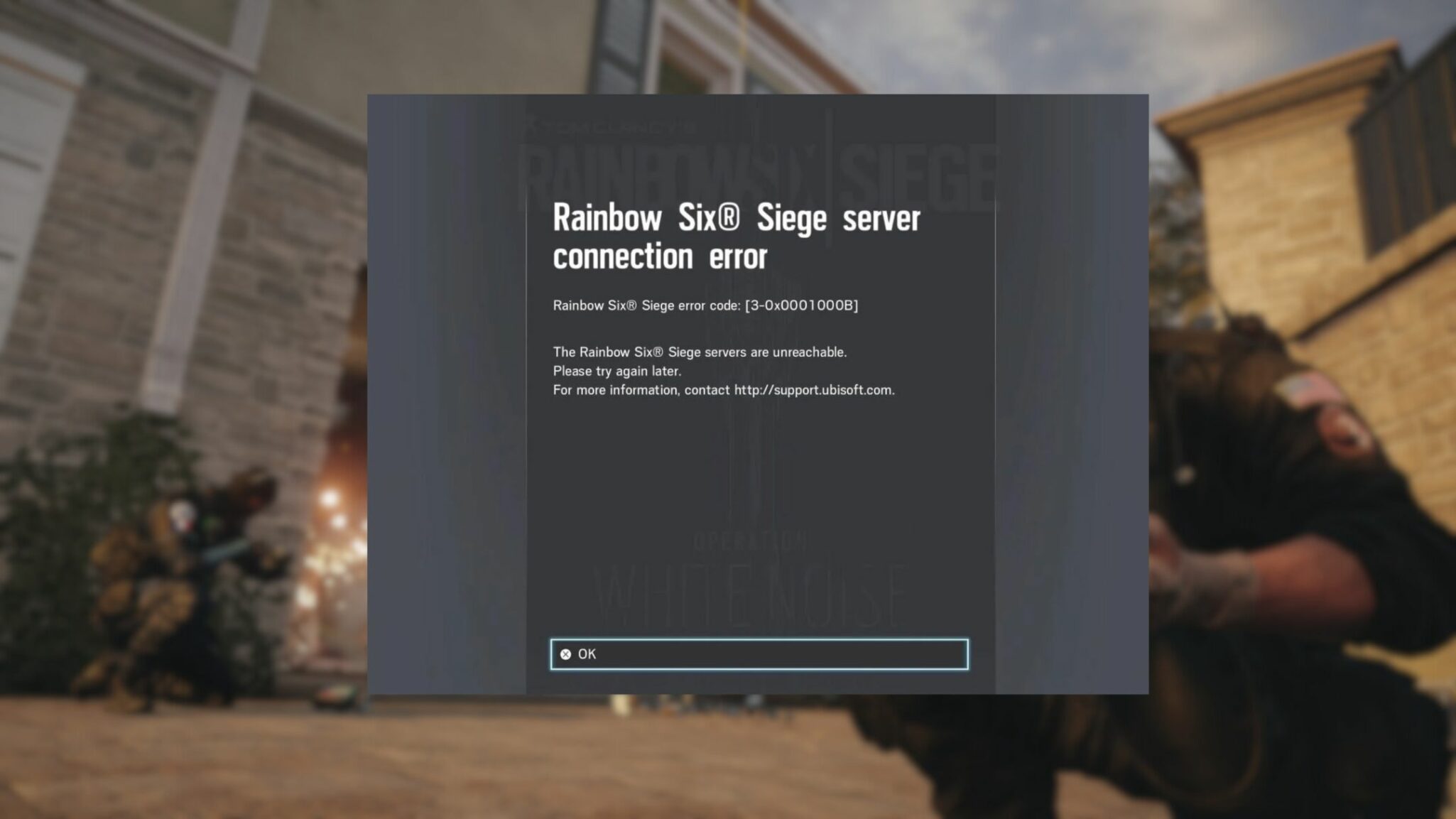
Nothing’s worse than gearing up for a tactical breach only to be greeted by server errors. Rainbow Six Siege, like any online game, can experience server hiccups due to maintenance, unexpected outages, or even issues on your end. Let’s troubleshoot this like a pro and get you back to clutching those rounds!
**1. Check the Battlefield (Server Status)**
Before you start messing with your own setup, confirm it’s not a widespread issue.
* **Official Ubisoft Server Status Page:** This is your primary intel source. Ubisoft provides real-time updates on the health of Rainbow Six Siege servers across all platforms (PC, PlayStation, Xbox).
* **Third-Party Status Trackers:** Websites like Downdetector and ActivePlayer.io gather crowd-sourced reports and can quickly indicate if many players are experiencing problems. If you see a spike in reports, it’s likely not just you.
* **Ubisoft Support Social Media:** Follow Ubisoft Support on Twitter or other social media channels. They often post updates on ongoing issues and maintenance schedules.
* **In-Game Notifications:** Sometimes, the game itself will notify you of server maintenance or outages.
*Current Intel (as of April 17, 2026):* There are reports of Rainbow Six Siege facing a sudden outage in the United States, with thousands of players reporting server, login, and launch issues. Around 10:15 EST, over 2,000 users reported disruptions. Ubisoft’s official status page, however, currently shows “No Issues” for PC, PS4, PS5, Xbox Series X|S, and Xbox One connectivity, authentication, in-game store, and matchmaking. This discrepancy suggests that while official services might be listed as operational, a significant number of players are still encountering problems.
**2. Local Network Reconnaissance (Troubleshooting Your Connection)**
If the servers seem fine on Ubisoft’s end, the issue might be closer to home. Here’s your tactical checklist:
* **Restart Everything (The Classic Fix):**
* **Restart Rainbow Six Siege:** Sometimes a simple restart of the game can resolve connection errors.
* **Restart Your PC/Console:** A full system restart can clear temporary glitches.
* **Restart Your Router/Modem:** Power cycle your network hardware by unplugging it for 30 seconds, then plugging it back in. This often resolves common connectivity issues.
* **Check Your Internet Connection:**
* **Test Your Connection:** Ensure your internet is working properly. Run a speed test to check for slow speeds or instability.
* **Wired Connection:** If you’re on Wi-Fi, try connecting your PC or console directly to your router with an Ethernet cable. Wired connections are generally more stable and can rule out wireless interference.
* **Flush DNS and Renew IP (PC Specific):**
* Open Command Prompt as an administrator.
* Type `ipconfig /flushdns` and press Enter.
* Type `ipconfig /release` and press Enter.
* Type `ipconfig /renew` and press Enter.
* Type `netsh winsock reset` and press Enter.
* Restart your computer after these steps.
* **Verify Game Files (PC Specific):**
* Corrupted or missing game files can cause connection issues. Use the file verification tools in Ubisoft Connect or Steam to check and repair your game installation.
* **Update Network Drivers (PC Specific):**
* Outdated network drivers can lead to connectivity problems. Make sure your network adapter drivers are up to date.
* **Adjust DNS Settings (Advanced):**
* You can try setting your DNS to public DNS servers like Google’s (Preferred: 8.8.8.8, Alternate: 8.8.4.4).
* On Xbox, you can manually set DNS settings in network settings.
* **Check Firewall and Antivirus:**
* Your firewall or antivirus software might be blocking Rainbow Six Siege’s connection. Ensure the game and Ubisoft Connect are allowed through your firewall. You might need to temporarily disable your antivirus to test if it’s the culprit.
* You can also try adding a new inbound rule for ports 49152-65535 in Windows Defender Firewall.
* **Enable UPnP (Universal Plug and Play):**
* UPnP allows your device to automatically set up port forwarding. You might need to enable this feature in your router settings or contact your Internet Service Provider (ISP) for assistance.
* **Change Server Region (In-Game):**
* If you’re experiencing high ping, you might be connected to a distant server. You can change your server in Rainbow Six Siege’s settings, usually under the Network tab. Sometimes, switching to a different region, even if it’s not your usual, can help if your primary server is having localized issues.
* **Contact Your ISP:**
* If you’ve tried everything above and still have issues, especially if it’s only with Rainbow Six Siege and not other online games, your ISP might be able to help troubleshoot connection problems specific to Ubisoft servers.
**3. When All Else Fails: Wait it Out or Report**
* **Ubisoft’s Fix:** If the problem is indeed on Ubisoft’s side, sometimes the only “hack” is patience. Developers are usually aware of widespread outages and work to resolve them quickly.
* **Report the Bug:** If you encounter specific error codes or persistent issues, report them on the R6Fix website. Provide detailed information like steps to reproduce the bug, expected behavior, and any workarounds you found.
Remember, even the best operators need a stable connection to succeed! Keep those systems optimized and your internet flowing. Now, if you’ll excuse me, I hear a drone buzzing – time to get back to the game! Any other tactical questions, like which operator to main or the best ways to counter a Blackbeard, just ask!

Leave a Reply